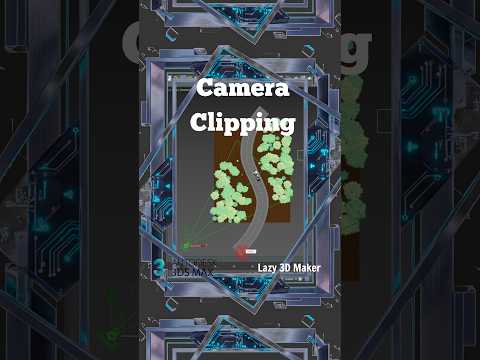
Creating vast, realistic environments is one of the most rewarding parts of architectural visualization. However, scattering thousands of trees, blades of grass, or rocks can quickly lead to sluggish viewports and agonizingly long render times. If you are looking to streamline your workflow using the 3ds Max corona renderer, mastering the Camera Clipping feature within Chaos Scatter is an absolute game-changer.
What is Chaos Scatter Camera Clipping?
Chaos Scatter is a powerful tool that allows you to distribute millions of instances across a surface. While it is incredibly efficient, rendering objects that aren't even visible in your final frame is a waste of precious system resources. Camera Clipping solves this by telling Chaos Scatter to only generate objects within the specific field of view of your active camera.
Step-by-Step: Enabling Clipping in 3ds Max
To get started, ensure you have your scattering setup ready within the 3ds Max corona renderer environment. Follow these simple steps to optimize your scene:
- Select your Chaos Scatter object: Navigate to the "Clipping" rollout in the Modify panel.
- Enable Camera Clipping: Check the box to activate the feature.
- Pick Your Camera: Use the selection tool to click on the camera you are using for your render.
- Adjust the Offsets: You can add a small "Extend" or "Offset" value. This ensures that shadows from objects just outside the frame are still calculated, preventing unnatural lighting gaps at the edges of your image.
Why This Matters for Your Workflow
The primary benefit of this technique is memory management. By limiting the number of instances to only what the camera "sees," you significantly reduce the RAM usage during the parsing and rendering phases. This allows you to push the level of detail in your foreground without crashing your system.
Furthermore, integrating these optimization tricks within the 3ds Max corona renderer ecosystem ensures that you can handle massive landscapes—like forests or meadows—on mid-range hardware.
Pro Tip: Use Distance Falloff
When using Camera Clipping, don't forget to experiment with the "Distance Falloff" settings. This allows objects to gradually thin out as they move further away from the camera, adding another layer of realism and performance optimization to your 3D scenes.
By implementing Camera Clipping, you’ll spend less time waiting for renders to finish and more time focusing on the creative artistry of your 3D models.


