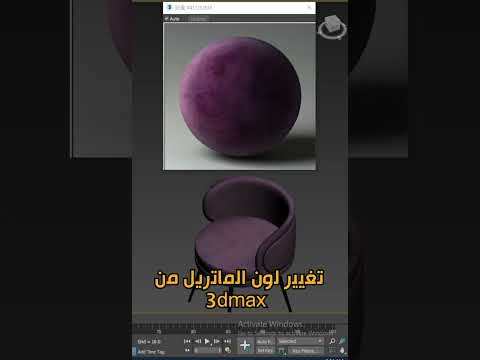
When working on architectural visualization or 3D rendering projects, modifying texture colors is a daily task. Many 3D artists automatically open Photoshop whenever a client requests a slight variation in wood grain, fabric tone, or wall paint. However, constantly switching back and forth between applications can significantly slow down your creative process. Fortunately, you can alter your 3ds Max materials directly inside the software using the built-in Color Correction map.
Why Skip Photoshop for Color Tweaks?
Exporting textures to external photo editors and re-importing them creates redundant files and clutters your project directories. By adjusting your 3ds Max materials natively, you preserve a clean, dynamic workflow. If a client asks to make a sofa darker or shift a rug from blue to green, you can perform real-time edits right in your viewport without breaking texture paths or re-saving image files.
How to Modify Material Colors Step-by-Step
Changing texture hues natively is simple once you know how to route your material maps:
- Open the Slate Material Editor: Press
Mon your keyboard to launch the material workspace. - Insert the Color Correction Node: Right-click in the Slate graph, navigate to Maps > General (or Standard depending on your engine), and select Color Correction.
- Connect Your Texture: Plug your original Bitmap image into the Map input of the Color Correction node. Next, connect the output of the Color Correction node into the Diffuse or Base Color channel of your material.
- Tweak the Parameters: Double-click the Color Correction node to access its settings panel.
- Use Hue Shift to change the color hue entirely.
- Adjust Saturation to make colors vibrant or muted.
- Fine-tune Brightness and Contrast to get the light levels just right.
Streamline Your 3D Texturing Pipeline
Leveraging built-in tools to manage your 3ds Max materials keeps your rendering pipeline fast and flexible. You eliminate duplicate texture files, save storage space, and get instant visual feedback during interactive rendering. Next time you need a quick color tweak, skip Photoshop and take full control of your shaders directly inside 3ds Max!


