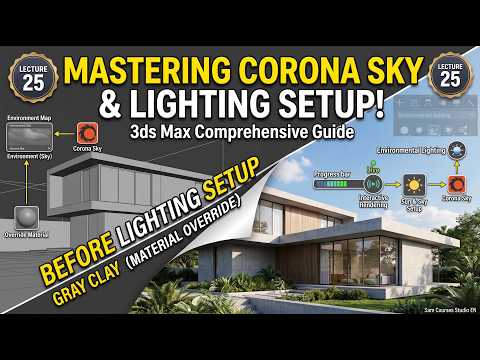
Achieving realistic photorealism in 3D visualization relies heavily on mastering your illumination setup. If you want your architectural renders to stand out, learning how to configure atmospheric skies alongside effective 3ds Max lighting techniques is an essential skill every 3D artist must master.
In this guide, we will break down the fundamental steps to set up Corona Sky and illuminate your scenes effortlessly in 3ds Max.
Understanding the Corona Sky System
The Corona Sky map works in perfect harmony with the Corona Sun to simulate realistic daylight conditions. By linking the sky map to your sun position, the environment automatically updates color temperature and atmospheric scattering based on the sun's angle.
To get started, open your Environment tab (shortcut key '8') and drag the Corona Sky map into the Environment Map slot. Ensure you instance it into your Material Editor so you can make real-time adjustments to turbidity, intensity, and sky model types (such as PRG Clear Sky).
Key Techniques for Effective 3ds Max Lighting
Creating believable daylight requires more than just placing a single light source; it demands careful control over exposure, shadow softness, and contrast. When configuring your 3ds Max lighting setup, keep these core principles in mind:
- Balance Sun and Sky Intensity: Keep the sun intensity balanced relative to the sky to prevent harsh overexposed highlights while maintaining natural, soft shadows.
- Use Tone Mapping Early: Utilize Corona’s built-in VFB (Virtual Frame Buffer) tone mapping. Adjusting highlight compression and white balance early helps you evaluate light levels accurately without unnecessarily over-tweaking light intensity values.
- Leverage Environment Overrides: If your interior scenes require softer ambient bounce light without altering the exterior visual background, use Corona's environment overrides to control GI (Global Illumination) and reflections independently.
Optimizing Your Workflow with LightMix
One of the greatest advantages of rendering in 3ds Max with Corona is the LightMix interactive tool. This feature allows you to tweak the color and intensity of individual light sources—including the Corona Sun and Sky—during or even after the render finishes, saving you hours of re-rendering time.
By mastering these fundamental techniques and understanding how natural daylight interacts with your scene geometry, you will dramatically elevate your 3ds Max lighting workflow and deliver breathtaking, client-ready architectural renders every time.


