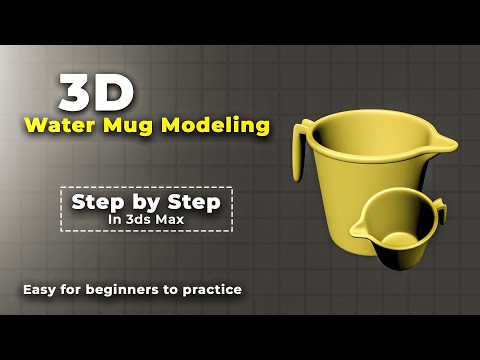
Are you just getting started with 3D modeling and looking for an easy, practical project to build your confidence? Modeling everyday household items is one of the best ways to learn the core tools of modern 3D software. In this guide, we will walk you through creating a simple water mug using 3ds Max, making it a perfect project for beginners looking to sharpen their skills.
Step 1: Setting Up the Base Geometry
Every great 3D asset starts with a simple primitive shape. To create a classic water or bath mug, begin by creating a basic Cylinder in your viewport. Adjust the height, radius, and segment parameters to match the general proportions of a standard mug.
Once you are satisfied with the initial proportions, right-click the object and convert it into an Editable Poly. This essential step gives you complete control over individual vertices, edges, and polygons, allowing you to manipulate the mesh freely.
Step 2: Hollowing Out the Mesh and Adding the Handle
Now that your base shape is ready, it is time to give the mug its practical form. Select the top polygon of the cylinder and apply the Inset tool to define the thickness of the mug's walls. Next, use the Extrude tool with a negative value to push the top polygon downward, creating the inner cavity of the vessel. Be careful not to extrude too far past the bottom base!
To create the handle, select two polygons on the side of the mug—one near the top rim and one near the base. Extrude these faces outward, adjust their angles toward each other, and use the Bridge tool to join them seamlessly into a clean handle curve. Mastering these primary polygon editing tools in 3ds Max will pave the way for tackling much more complex assets in future projects.
Step 3: Refining Details and Adding Smoothness
Sharp, angular edges often make 3D renders look artificial. To achieve a realistic finish, select the outer rim and handle edges to apply a subtle Chamfer. This softens the transition lines and captures natural light highlights.
Finally, add a TurboSmooth modifier to your modifier stack to instantly smooth out the geometry without destroying your underlying base mesh. Apply a basic material with medium glossiness to simulate ceramic or plastic, render your viewport, and enjoy your completed 3D asset.
With consistent practice on basic objects, learning 3ds Max becomes an enjoyable and highly rewarding creative journey!


