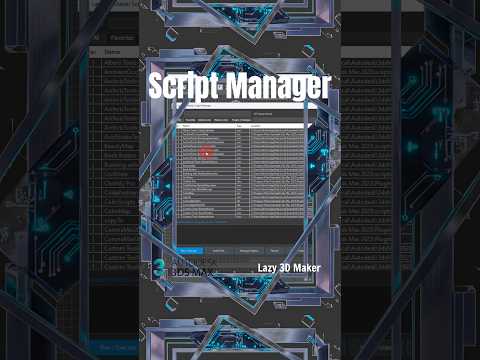
Whether you are a seasoned 3D artist or an aspiring visualization specialist, Autodesk 3ds Max remains one of the industry's most powerful software solutions. However, to truly unlock its full potential, mastering how to manage scripts and plugins is essential. From industry-standard rendering engines like V-Ray and Corona Renderer to custom user interface scripts, external tools can drastically accelerate your architectural visualization and modeling workflows.
If you are planning to get started or recently completed an official 3ds Max download, organizing your workspace from day one will save you hours of technical frustration down the road.
Why Are Plugins and Scripts Essential?
While 3ds Max comes packed with robust features out of the box, third-party plugins and user-created scripts take your production quality to the next level. High-end render engines like Chaos V-Ray and Chaos Corona offer photorealistic lighting, realistic materials, and advanced camera controls. Meanwhile, lightweight MaxScript files can automate tedious modeling tasks, optimize complex scene files, and streamline material assignments in just a few clicks.
How to Install and Organize 3ds Max Extensions
Managing your scripts effectively ensures your software remains stable and clutter-free:
- Use Official Installers: Major plugins and rendering engines usually provide dedicated executable installers. Make sure they automatically detect the correct installation path after your 3ds Max download is complete.
- Utilize Drag-and-Drop Scripting: Many lightweight scripts (
.msor.mcrformats) can be installed by simply dragging and dropping the file directly into the 3ds Max viewport. - Customize Your Interface: Navigate to Customize > Customize User Interface to bind your frequently used scripts to floating toolbars, quad menus, or customized keyboard shortcuts.
Best Practices for Maintaining a Clean Workspace
- Maintain a Dedicated Script Backup: Store all your downloaded scripts and plugin installers in an organized cloud folder for easy re-installation.
- Audit Unused Plugins: Regularly disable or remove plugins you no longer use to maintain fast software startup times.
- Maintain Version Compatibility: Ensure your custom scripts remain compatible whenever you perform a new 3ds Max download or upgrade to a newer software release.
Conclusion
Optimizing your script and plugin management allows you to eliminate repetitive tasks and focus on creating breathtaking 3D renders. Initiate your 3ds Max download from Autodesk, set up your favorite tools, and start building a highly efficient 3D pipeline today!


