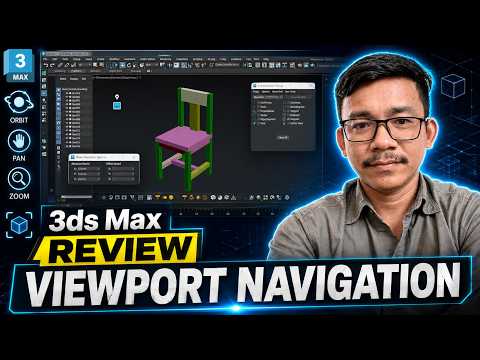
Navigating a 3D workspace efficiently is the foundational step toward becoming a skilled 3D artist. Whether you are building intricate architectural visualizations, designing game assets, or crafting high-detail character models, mastering 3ds Max viewport navigation is essential. Without smooth navigation controls, even basic modeling tasks can quickly become sluggish and frustrating.
Understanding the Core Navigation Controls
To move around your scene seamlessly, you need to master three fundamental viewport movements:
- Panning: Hold down the Middle Mouse Button (MMB) and drag to move your view parallel to the screen.
- Zooming: Scroll the Mouse Wheel forward or backward to zoom in and out of your active view.
- Orbiting: Hold Alt + Middle Mouse Button and drag to rotate your camera perspective around the center of your scene or a selected object.
Essential Keyboard Shortcuts for a Faster Workflow
Keyboard shortcuts save valuable time and keep your creative flow uninterrupted. Here are the must-know viewport shortcuts used in 3ds Max:
- Alt + W: Maximize or minimize the active viewport, toggling between a single view and the standard four-viewport layout.
- Z: Extents Zoom. Pressing this instantly focuses and centers the active view on your selected object.
- P, T, F, L: Quickly switch your active viewport display to Perspective (P), Top (T), Front (F), or Left (L) view.
Optimizing Viewport Display Modes
Managing how your geometry is rendered inside the viewport helps maintain optimal system performance, especially when handling complex high-poly scenes. Switching between display modes is key:
- F3: Toggles between Wireframe and Shaded display modes.
- F4: Toggles Edged Faces on or off, allowing you to clearly inspect your object's wireframe topology over shaded surfaces.
Conclusion
Developing fluid viewport navigation in 3ds Max takes a short period of deliberate practice, but once these controls become muscle memory, your modeling speed and precision will improve dramatically. Spend time experimenting with these navigation tools and shortcuts today to elevate your 3D workflow!


