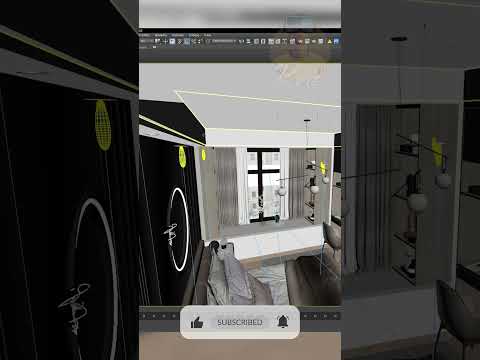
When you are deep in the creative flow of a complex architectural visualization or a high-poly character model, your viewport can quickly become a cluttered mess. Between dozens of light sources, multiple camera angles, and the actual geometry you are trying to edit, it is easy to lose focus. While 3ds Max offers a dedicated Display panel to manage object visibility, stopping your workflow to click through menus can break your momentum.
The key to maintaining a professional and efficient workspace lies in mastering essential 3ds Max shortcuts. Instead of manually hiding objects to see what you are doing, you can use instant commands to toggle the visibility of specific non-geometry items.
The Secret to a Cleaner Viewport
The most effective way to instantly declutter your scene is by using category-specific hide toggles. If you find your view blocked by camera icons or the wireframes of your lighting rig, use these two simple combinations:
- Shift + C: Instantly hides or unhides all Cameras in the active viewport.
- Shift + L: Instantly hides or unhides all Lights.
By integrating these 3ds Max shortcuts into your daily habit, you can switch from a technical "setup mode" to a "creative modeling mode" in less than a second. This is particularly useful when you need to select vertices or edges that are physically positioned behind a light or camera icon.
Why Viewport Management Matters
Managing visibility isn't just about aesthetics; it’s about precision. When your viewport is crowded, you run the risk of accidentally selecting and moving a light source or a camera that has already been perfectly positioned. By hiding these elements when they aren't needed, you ensure that your focus remains entirely on the geometry.
Furthermore, a cleaner viewport can sometimes improve the visual performance of your workstation, especially in scenes with hundreds of light instances. Using these 3ds Max shortcuts allows you to stay organized without the need for complex layer management or nested groups.
Boost Your Productivity
In the world of 3D production, time is your most valuable asset. Small adjustments to your workflow—like moving away from mouse-heavy menu navigation and toward keyboard-centric commands—add up to hours of saved time over the course of a project. Next time you feel overwhelmed by the icons in your scene, remember that a cleaner, more professional workspace is only a single click away.


