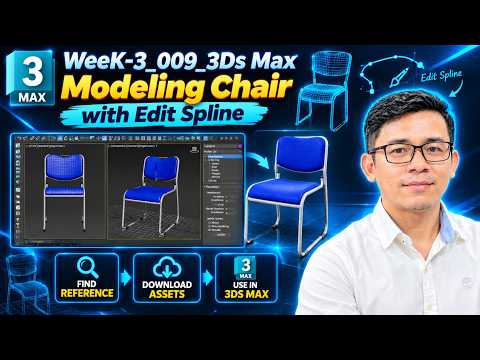
Creating realistic furniture is a fundamental skill for any aspiring 3D artist or architectural visualizer. Among the many tools available, the "Edit Spline" modifier remains one of the most powerful and flexible methods for crafting complex shapes. In this guide, we will walk through the essential steps of modeling a professional chair, ensuring you maintain a smooth and efficient workflow.
Setting Up Your Workspace
Before diving into the geometry, it is crucial to organize your workspace. High-quality modeling begins with a clear perspective. Navigating your 3ds Max viewport efficiently allows you to see the proportions of your chair from every angle—Top, Front, and Left. Start by importing a reference image or a rough sketch to guide your dimensions, ensuring your scale is set to real-world units for maximum accuracy.
Crafting the Frame with Edit Spline
The Edit Spline modifier is the secret weapon for creating tubular frames or curved backrests. Instead of starting with a heavy mesh, begin by drawing a simple "Line" or "Rectangle." Once you apply the Edit Spline modifier, you gain total control over the vertices.
Use the 'Fillet' tool to round off sharp corners, giving the chair an ergonomic and modern aesthetic. While working within the 3ds Max viewport, you can easily toggle between different display modes to check the curvature and flow of your lines. This non-destructive method allows you to tweak the design at any stage without starting from scratch.
Adding Volume and Thickness
A 2D spline only becomes a 3D object once you add thickness. In the 'Rendering' rollout of your spline settings, make sure to check "Enable in Renderer" and "Enable in Viewport." This will transform your thin lines into solid, 3D geometry. You can choose between a Radial cross-section for round legs or a Rectangular cross-section for a more industrial look.
Final Refinements
As you wrap up your model, keep a close eye on your interpolation settings. If the curves look jagged in the 3ds Max viewport, increase the "Steps" in the Interpolation rollout to smooth them out. By mastering these spline-based techniques, you can create intricate furniture pieces that are both optimized for performance and visually stunning.
Whether you are a student or a professional, practicing these Edit Spline fundamentals will significantly enhance your 3D modeling repertoire. Happy modeling!


