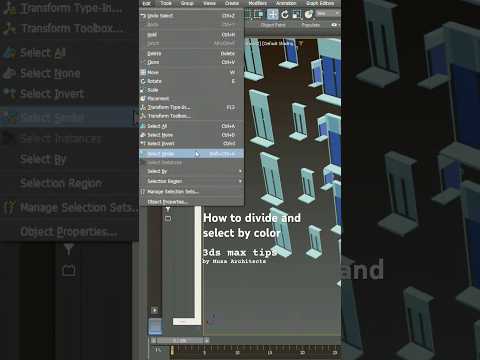
When working on complex architectural or visualization projects, scene organization is the key to maintaining a smooth, efficient workflow. If you are dealing with hundreds of imported CAD lines, geometry blocks, or furniture items, manually searching for specific elements can bring your productivity to a halt. Fortunately, learning how to divide and select objects by color in 3ds Max is one of the easiest ways to clean up your workspace and speed up your rendering pipeline.
Why Select Objects by Color?
In 3D architectural visualization, elements are often assigned wireframe colors automatically upon import or creation. Grouping or selecting these items by their assigned display color allows you to:
- Instantly isolate specific building components, such as windows, walls, or foliage.
- Assign materials in bulk without clicking individual meshes one by one.
- Quickly clean up messy CAD imports with mismatched layers.
Step-by-Step: Selecting Objects by Color in 3ds Max
Follow these straightforward steps to filter your scene elements by color:
- Access the Selection Menu: Go to the main menu bar at the top of your interface and navigate to
Edit>Select By>Color. - Pick the Target Color: Click on any object in your viewport that displays the color you wish to target.
- Execute the Selection: 3ds Max will immediately highlight every visible object in your active scene that shares that exact display color.
Dividing and Organizing Your Selection
Once your matching objects are selected, you can separate and structure them to keep your viewport manageable:
- Assign to Layers: Open the Layer Explorer and move the selected objects into dedicated, named layers (e.g., "Glass_Panels" or "Furniture_Base").
- Group Elements: Use the
Groupmenu command to keep colored components together for quick repositioning or scaling. - Detach Geometry: If working within an Editable Poly or Mesh sub-object mode, use the
Detachtool to break selected elements into standalone objects.
Final Thoughts
Mastering simple selection techniques can save you hours of tedious manual work on large visualization projects. By taking advantage of color-based selection, you keep your scene tidy and focus more on lighting, texturing, and building stunning architectural renders. Try incorporating this habit into your daily modeling routine for a faster, friction-free workflow!


