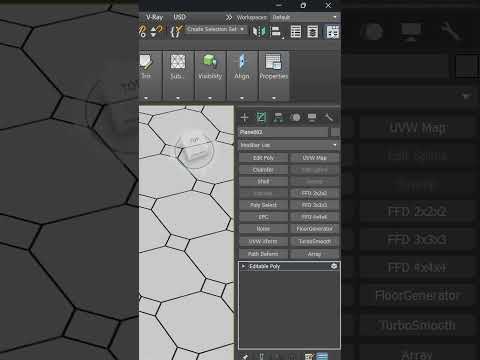
Are you still clicking on every individual object in your scene one by one? If you work on complex architectural visualizations or detailed 3D environments, manual selection can quickly drain your energy and waste valuable time. Fortunately, 3ds Max offers a powerful built-in feature designed specifically to eliminate this repetitive chore: the Select Similar command.
What is the "Select Similar" Command?
The Select Similar tool is an essential productivity feature for 3D artists, architects, and designers. Instead of manually Shift-clicking dozens—or even hundreds—of matching geometry elements, this command analyzes your active selection and automatically highlights all comparable objects throughout your scene.
Whether you need to update light fixtures, adjust chair legs, tweak foliage, or apply materials to decorative items, this function completes the task in seconds.
How to Use Select Similar in 3ds Max
Integrating this tool into your daily modeling workflow in 3ds Max is remarkably simple:
- Pick a Base Object: Select a single sub-object (such as a polygon, edge, or vertex) or a standalone object that represents the group you want to select.
- Run the Command: Right-click in the viewport to bring up the Quad Menu, or navigate to the Ribbon interface under the Edit/Modify panel and click Select Similar.
- Fine-Tune Options (If Needed): Adjust the selection filtering criteria based on geometry, material IDs, or smoothing groups to get exact results for complex meshes.
Why You Should Upgrade Your Workflow Today
- Maximize Efficiency: Spend less time on tedious manual tasks and focus more on creativity, lighting, and rendering.
- Minimize Errors: Avoid missing hidden or small objects that are easy to overlook during manual selection.
- Reduce Workspace Fatigue: Drastically reduce unnecessary mouse clicks and streamline long production sessions.
Conclusion
Mastering quick efficiency techniques like Select Similar is one of the easiest ways to elevate your 3D workflow. Stop wasting time on manual work and let 3ds Max do the heavy lifting for you. Give this simple shortcut a try in your next project and watch your scene management become faster and far more enjoyable!


