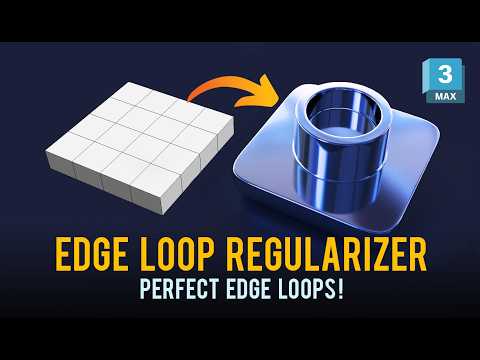
Creating clean, high-quality geometry is one of the biggest challenges in 3D modeling, especially when working with curved surfaces. Standard scaling methods or manual vertex tweaking often result in ugly pinching, distortion, and uneven shading. Fortunately, mastering 3ds Max techniques like the Edge Loop Regularizer can drastically speed up your hard-surface workflow while guaranteeing pristine topology.
The Challenge of Adding Holes to Curved Geometry
When modeling complex objects such as mechanical components, industrial machinery, or curved architectural panels, maintaining consistent vertex spacing is vital. Cutting a circle directly into a curved mesh usually disrupts the natural flow of the polygons. Without proper edge distribution, applying subdivision modifiers like TurboSmooth will immediately expose unwanted shading artifacts and lighting glitches.
How the Edge Loop Regularizer Solves Topology Issues
The Edge Loop Regularizer script simplifies this complex process into a single click. Instead of spending tedious minutes manually nudging individual vertices, this powerful tool automatically reorganizes selected vertices into a perfectly round circle or an evenly distributed shape.
Here is a simple, step-by-step technique for flawless execution:
- Prepare the Surface: Select the polygons on your curved mesh where the circular detail belongs, and apply a small Inset. This creates a protective boundary loop around your feature.
- Run the Regularizer Tool: Select the newly created inner loop or set of vertices, then execute the regularizer tool. It immediately transforms the selection into a perfectly symmetrical circle without distorting the underlying curve.
- Extrude and Add Support Loops: Extrude the circular geometry inward or outward to form the hole. Finally, add tight support loops near the edges to preserve sharp details when subdivided.
Boost Your Efficiency in 3ds Max
Integrating smart workflow scripts into 3ds Max eliminates tedious manual labor, allowing you to focus on design and creative detail. Clean, quad-based geometry not only looks professional in wireframe previews but also ensures smooth rendering, easy rigging, and hassle-free UV unwrapping across all your 3D projects.


