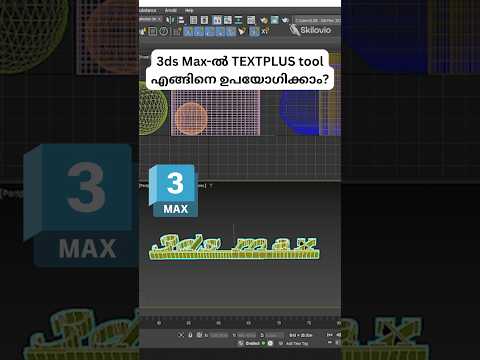
Creating dynamic, high-quality 3D typography is an essential skill for motion designers, architects, and 3D artists alike. While older versions of 3D software required tedious workarounds for custom lettering, the powerful TextPlus tool in 3ds Max has completely revolutionized how artists create, manipulate, and animate 3D text.
Whether you are designing promotional motion graphics or adding realistic signage to an architectural render, mastering TextPlus will streamline your workflow and boost your creative output.
Why Use the TextPlus Tool?
Unlike standard legacy text shapes, TextPlus is a unified parametric object that combines text creation, advanced formatting, and complex geometry controls into a single, intuitive interface.
Key benefits include: - Advanced Typography Controls: Fine-tune tracking, kerning, leading, and font styles directly inside the viewport. - Built-in Geometry Options: Apply extrusions, bevels, and cap surfaces without needing extra modifiers. - Animation Readiness: Animate individual characters, words, or lines of text effortlessly using built-in parameters.
Step-by-Step: Getting Started with TextPlus
Getting started with TextPlus is straightforward once you understand its core settings:
- Create the Object: Navigate to the Create Panel > Shapes > TextPlus, and click anywhere in your viewport to place the text object.
- Customize Your Text: In the Modify Panel, type your custom text. You can choose any installed font, adjust text alignment, and fine-tune character spacing.
- Add Extrusion and Beveling: Open the Geometry rollout to add depth. Utilize built-in bevel presets or create custom edge profiles to catch lighting realistic render highlights.
- Animate (Optional): Use the Animation rollout inside the tool to create smooth text transitions or character-by-character reveals.
Best Practices for 3D Typography
To achieve professional results when working in 3ds Max, always keep your geometry clean. Avoid overly complex cursive fonts that might create self-intersecting polygons when extruded. Additionally, apply subtle chamfers to text edges so lighting hits your 3D lettering smoothly.
Conclusion
The TextPlus tool is a versatile asset for any artist looking to produce clean, flexible 3D typography efficiently. Incorporating these best practices into your 3ds Max workflow will save valuable project time while dramatically elevating the quality of your renders.


