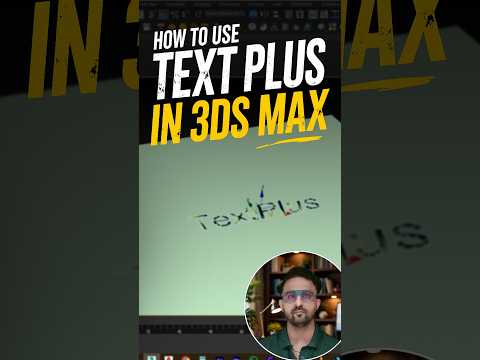
Creating eye-catching 3D text is an essential skill for motion designers, visualizers, and digital artists. While older modeling workflows required tedious modifier stacks and constant geometry cleanups, creating dynamic text doesn't have to be complicated when using 3ds Max.
With the built-in Text Plus tool, you can generate clean, fully parametric 3D typography in just a few clicks. Here is a quick breakdown of why this feature is a game-changer and how you can get started in seconds.
Why Use the Text Plus Tool?
Unlike legacy text tools that required separate Extrude or Bevel modifiers, the Text Plus feature in 3ds Max combines typography controls, depth generation, beveling options, and text animation parameters into a single, intuitive interface.
Key advantages include: - All-in-One Control Panel: Adjust font family, tracking, kerning, and line spacing without changing panels. - Integrated Geometry Controls: Add extrusions and customized bevel profiles directly within the object settings. - Non-Destructive Editing: Change the text string, font, or geometry parameters at any stage of your project without losing your workflow.
Quick Guide: Create 3D Text in 4 Simple Steps
Follow these easy steps to bring your 3D lettering to life:
- Locate the Tool: Go to the Create Panel, navigate to Shapes (or Geometry), and select TextPlus. Click anywhere in your viewport to place the text object.
- Input Your Text: In the Text rollout, type your desired word or sentence. Customize the font type, size, and alignment to fit your design vision.
- Add Depth: Scroll down to the Geometry rollout, check the Extrude option, and adjust the value to give your letters realistic 3D depth.
- Apply Bevels: Open the Bevel tab to add smooth, light-catching chamfers or custom profiles to the edges of your typography.
Level Up Your 3D Workflow
Mastering quick, essential tools like Text Plus allows you to dramatically speed up your production time while maintaining total creative control over your scenes. Whether you are a beginner learning the basics or an experienced artist sharpening your skills, taking advantage of these built-in features is a crucial step toward becoming a 3ds Max pro. Practice these steps on your next scene and watch your 3D typography stand out!


