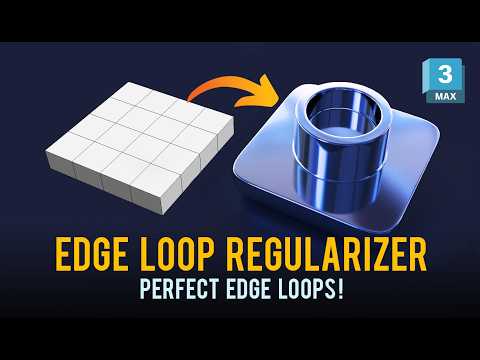
Creating clean geometry on curved surfaces is one of the biggest challenges in hard-surface 3D modeling. If you have ever tried cutting a circular hole into a curved mesh, you know how easily pinching and distortion can ruin your render. Fortunately, 3ds Max offers powerful techniques to quickly achieve perfectly circular holes and evenly distributed edge loops without destroying your mesh flow.
Why Clean Edge Loops Matter
To maintain smooth shading—especially when applying a TurboSmooth modifier—your mesh topology must remain clean and predictable. Uneven edge loops cause unwanted pinching, shading artifacts, and lighting errors on curved surfaces. By regularizing your edge loops, you ensure that quad polygons flow logically across the model, making future edits and subdivisions effortless.
Step-by-Step: Creating Perfect Circles on Curved Geometry
Achieving flawless circular cutouts in 3ds Max is straightforward when you follow a structured workflow:
- Select the Target Polygons: Identify and highlight the faces on your model where the hole needs to be located.
- Inset the Faces: Apply a small Inset to generate an essential supporting edge loop around the perimeter.
- Delete Inner Polygons: Remove the inner faces to leave an open border.
- Use the Loop Regularizer: Select the boundary edge loop and execute the Regularize command (or Regularizer script) to instantly transform the irregular selection into a perfect circle.
- Add Support Loops: Extrude or inset the new circular boundary inward to create holding edges, ensuring the mesh retains its shape when subdivided.
Pro Tips for Flawless Topology
- Maintain Consistent Density: Try to match the vertex count of your circular loop with the surrounding mesh density to avoid unnecessary tension.
- Stick to Quads: Keep your geometry composed of four-sided polygons (quads) to prevent smoothing issues.
- Use Edge Constraints: When adjusting nearby vertices on a curved surface, enable Edge Constraints in the Edit Poly tools so you do not alter the overall curvature of the object.
Mastering these essential modeling techniques in 3ds Max will dramatically speed up your hard-surface workflow and lead to clean, professional-grade 3D assets every time.


