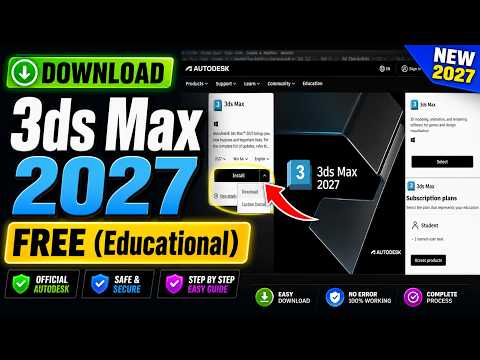
Are you an aspiring 3D artist, architecture student, or game design enthusiast looking to master industry-standard software? Autodesk 3ds Max is renowned worldwide for its powerful modeling, animation, and rendering capabilities. Thankfully, you do not need to worry about costly subscription fees while learning—getting the official 3ds Max student version gives you full access to all essential tools for educational purposes.
In this quick guide, we will walk you through the simple process of setting up your Autodesk Education Access to download and install 3ds Max 2027 legally and safely.
What is Autodesk Education Access?
Autodesk offers complimentary 1-year renewable access to its software catalog for eligible students and educators worldwide. Through this program, you can access the full-featured 3ds Max student version to complete coursework, build your portfolio, and develop professional design skills.
Step-by-Step Guide to Download 3ds Max 2027
Setting up your account is straightforward when you follow these official steps:
-
Create or Sign In to Your Autodesk Account
Visit the official Autodesk Education community portal. If you do not have an account yet, sign up using your institutional (.edu) email address to streamline the verification process. -
Verify Educational Eligibility
Autodesk requires proof of enrollment at an accredited educational institution. Be ready to upload a digital copy of an official student ID, school transcript, or enrollment confirmation letter showing your full name and institution name. Verification usually takes a few minutes to a few hours. -
Select 3ds Max 2027 and Download
Once your educational eligibility is confirmed, head over to the 3ds Max product page within the Education portal. Select 3ds Max 2027, choose your preferred system language, and click Install or Download. -
Complete Installation and Activation
Run the downloaded installer file and follow the on-screen instructions. Once the installation completes, launch the program and sign in with your verified Autodesk account to automatically activate your educational license.
Important License Terms to Remember
While the educational access provides identical features to the paid version, it is intended strictly for non-commercial educational use. Projects created using this license should not be monetized or used for commercial client work.
By following these simple steps, you can safely acquire the 3ds Max student version and jump straight into 3D modeling and rendering without spending a dime. Start creating your 3D masterpieces today!


