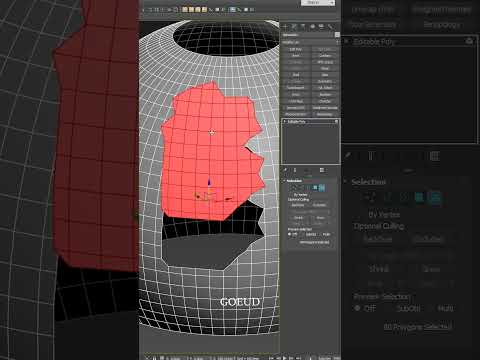
Precision is everything in 3D modeling. Whether you are crafting intricate architectural interiors or complex product visualizations, knowing how to manipulate geometry efficiently can save you hours of manual work. One underutilized technique that simplifies geometry separation is using the Cut tool combined with the Split option.
What is the Cut Tool with Split Option?
When working in 3ds Max, the Cut tool allows artists to draw new edges across polygons, creating custom geometry on the fly. However, standard cutting simply adds new edges on the existing mesh surface. By enabling the Split option within the tool's settings, the software automatically disconnects the mesh along the freshly cut line.
This means instead of just adding edge loops, you are actively slicing the mesh into independent topological elements without needing manual detachment steps later.
Why Use This Technique in Your Workflow?
Using the Cut with Split method offers several distinct advantages for 3D modeling artists:
- Speed and Efficiency: It eliminates extra steps like selecting polygon loops and manually executing the "Detach" or "Break" commands.
- Clean Architectural Details: It is perfect for creating wall panels, tile seams, reveal lines, or custom furniture joints in interior design scenes.
- Improved Mesh Control: It keeps your modeling process clean and organized, making it a game-changer for architectural visualization artists using 3ds Max to build detailed interiors.
Step-by-Step: How to Perform a Cut with Split
- Select Your Object: Convert your base geometry to an Editable Poly or apply an Edit Poly modifier.
- Activate the Cut Tool: Go to the Edit Geometry rollout in the command panel and select Cut.
- Enable Split: Check the Split option in the modeling ribbon or tool options before making your cut.
- Slice Your Geometry: Click across the points on your mesh where you want to create the separation. Once completed, the geometry will automatically split into separate elements along the cut path.
Final Thoughts
Mastering small workflow tips like the Cut with Split technique allows you to build complex, detailed models with minimal effort. Integrate this quick tool into your daily modeling pipeline to drastically elevate your speed and precision in 3ds Max.


