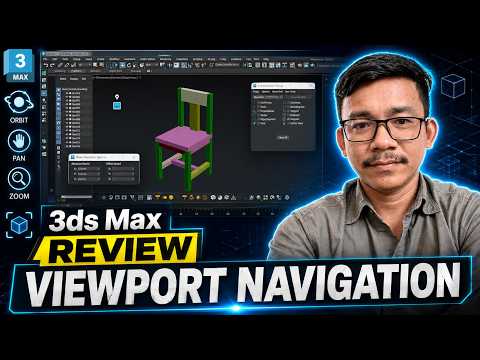
Navigating a three-dimensional environment can feel overwhelming for beginners, but mastering the viewport is the first step toward becoming a professional digital artist. In 3ds Max, the viewport is your window into the digital world, and understanding how to move through it efficiently is crucial for maintaining a smooth and productive workflow.
The Foundation of 3D Movement
The most essential skills in any 3D software are panning, zooming, and orbiting. These allow you to inspect your models from every angle and ensure that every vertex is exactly where it needs to be. In the standard setup of 3ds Max, the middle mouse button is your best friend. By clicking and dragging the wheel, you can "pan" across the screen. Scrolling the wheel allows you to "zoom" in on fine details or out to see the entire scene.
To truly "orbit" around your object, simply hold the Alt key while dragging with the middle mouse button. This 360-degree rotation is what transforms a flat screen into a deep, navigable space.
Essential Shortcuts for Speed
Efficiency is key when working on complex projects. Instead of clicking icons in the user interface, professional artists rely on keyboard shortcuts to stay in the creative flow. For example, pressing "Z" will instantly center and zoom into your selected object, preventing you from getting "lost" in the infinite 3D space.
Furthermore, switching between different views is vital. By using the hotkeys T (Top), F (Front), L (Left), and P (Perspective), you can jump between different angles instantly. This multi-perspective approach ensures that your proportions remain accurate throughout the modeling process.
Customizing Your View
Every artist has a unique way of working. Within 3ds Max, you can customize your viewport layout to show one large window or the traditional four-view setup (Top, Front, Left, and Perspective). Using the "Alt + W" shortcut allows you to toggle between a single maximized viewport and the multi-view layout, giving you more screen real estate when you need to focus on intricate textures or complex geometry.
By mastering these navigation techniques, you remove the barriers between your imagination and the software. With consistent practice, moving through the 3D workspace will become second nature, allowing you to focus on what really matters: creating incredible art.


