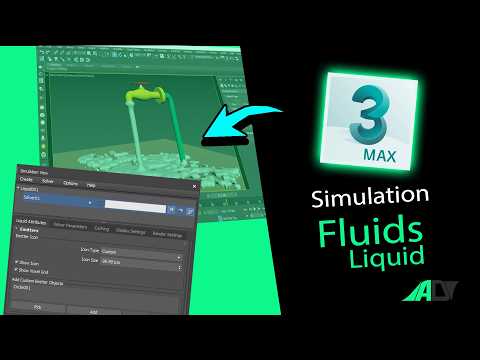
Creating lifelike water has long been considered one of the most challenging yet rewarding tasks for 3D artists. Whether you are designing a serene poolside for an architectural visualization or a raging ocean for a cinematic sequence, the ability to simulate fluids accurately adds a layer of professional immersion to your work. In this guide, we will break down the essential steps to mastering fluid dynamics using the powerful tools found within 3DSMAX Software.
Getting Started with Fluid Domains
The first step in any successful simulation is defining the environment. In 3DSMAX Software, the fluid loader and simulation view allow you to set the boundaries of where your liquid will behave. To begin, you need to create a "Liquid" object from the Create Panel. This serves as your central hub for all simulation data. You’ll also need an "Emitter"—the source of your water—and "Colliders," which are the objects the water will hit, such as a glass, a riverbed, or a floor.
Configuring Physics for Realistic Motion
Once your scene is set, the secret to realism lies in the physics settings. Realistic water isn't just about movement; it’s about how the particles interact with one another. Within the fluid settings, you can adjust the "Master Voxel Size." A smaller voxel size results in much higher detail and more realistic splashes, though it will require more processing power.
Key attributes to focus on include: * Viscosity: Keep this low for clear, flowing water. * Surface Tension: This controls how the water "clings" to itself and other surfaces. * Gravity and Friction: Ensure these align with the scale of your scene to prevent the water from looking like it is moving in slow motion.
Refining and Rendering the Final Look
After you are satisfied with the motion of the simulation, it is time to generate a "Mesh." This process wraps a digital skin over your fluid particles, creating a solid surface that can reflect and refract light. This is where the true power of 3DSMAX Software shines, as you can apply high-quality Arnold or V-Ray materials to your mesh. Adding a slight blue tint and ensuring the "Index of Refraction" (IOR) is set to approximately 1.33 will give you that perfect, crystal-clear water appearance.
Finally, remember to cache your simulation before rendering. Caching saves the movement data to your hard drive, ensuring that the water looks identical in every frame of your animation. With these techniques, you can transform a simple 3D scene into a dynamic, fluid masterpiece.


