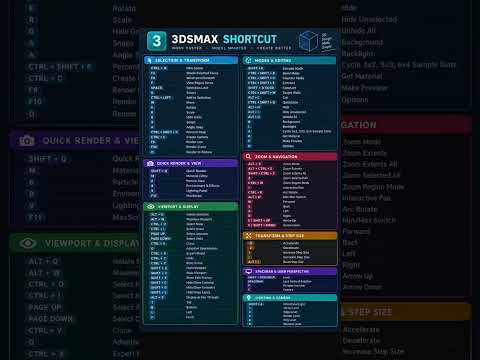
In the fast-paced world of 3D design and digital art, every second counts. Whether you are building complex architectural visualizations or detailed character models, efficiency is the name of the game. One of the most effective ways to shave hours off your project time and reduce physical strain is by mastering 3ds Max shortcuts.
The Power of Keyboard Efficiency
When you rely solely on clicking icons and searching through deep menu bars, you inadvertently break your creative flow. Transitioning to a shortcut-based workflow allows you to keep your eyes on the viewport and your mind on the design. By memorizing a few key combinations, you transform your keyboard into a powerful control center that responds to your creative instincts instantly.
Core Navigation and Transformation Tools
The foundation of a fast workflow starts with the basic transformation gizmos. Instead of hunting for buttons, use these standard keys: * W: Select and Move * E: Rotate * R: Scale * Alt + W: Toggle between a single viewport and the four-view layout.
Mastering these 3ds Max shortcuts ensures that you can manipulate objects in 3D space with fluid precision. The "Alt + W" command, in particular, is a lifesaver when you need to quickly check your proportions from the Top, Front, and Left views simultaneously.
Managing Your Workspace and Selection
As your scenes grow in complexity, managing what you see becomes vital. Using Q for the selection tool allows you to cycle through different selection regions (like rectangular or circular) without moving your mouse to the toolbar. Additionally, toggling between display modes is essential for performance; use F3 to switch between Wireframe and Shaded modes, and F4 to show Edged Faces.
If your scene becomes too cluttered with lights, cameras, and helpers, you can use Shift + G to hide geometry or Shift + L to hide lights. These quick commands help you stay organized and focused on the specific task at hand.
Conclusion: Practice Makes Perfect
Incorporating these 3ds Max shortcuts into your daily routine may feel awkward at first, but it is the single best investment you can make in your professional development. Start by picking three or four keys to use today, and gradually add more to your repertoire. Before long, your fingers will move automatically, allowing you to level up your 3D modeling and rendering speed to a professional standard.


