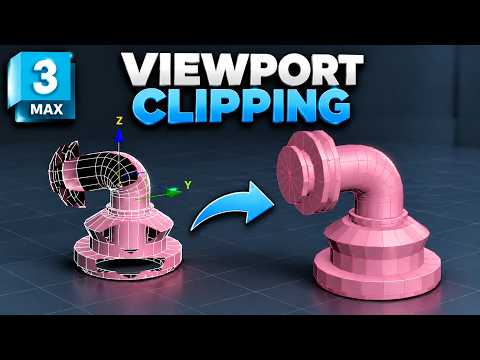
Have you ever been deep into a modeling session, zoomed in close to refine a small detail, and suddenly parts of your model vanished? Or perhaps you zoomed out, and large portions of your scene flickered and disappeared? Don't panic—your geometry isn't corrupted. You are simply dealing with a common issue known as viewport clipping.
Viewport clipping is a frequent hassle that 3D artists face, especially when creating highly detailed 3ds Max game assets or working on massive architectural scenes. Fortunately, fixing this annoying visual glitch is quick and straightforward once you know how to configure your settings correctly.
What Causes Viewport Clipping in 3ds Max?
Viewport clipping occurs when the viewport camera cuts off geometry that falls outside a specific distance range, defined by the near and far clipping planes. By default, 3ds Max sets these boundaries to optimize rendering performance. However, when working on tiny details or large-scale models, these default limits can cause objects to slice apart or disappear completely as you navigate the scene.
How to Fix Disappearing Objects (Step-by-Step)
Fixing clipping issues takes less than a minute. Follow these simple steps to regain total control over your camera view:
- Access the Viewport Menu: Click on the viewport display label (e.g., Perspective or Orthographic) in the top-left corner of your viewport.
- Enable Viewport Clipping: From the drop-down menu, click on Viewport Clipping. A thin vertical bar with two small triangular sliders will appear on the far right side of your viewport.
- Adjust the Clipping Sliders:
- Top Slider (Far Clipping Plane): Drag this slider up or down to control how far the viewport can render distant objects.
- Bottom Slider (Near Clipping Plane): Drag this slider to prevent nearby geometry from being sliced open when you zoom in closely.
By adjusting these controls, you can seamlessly zoom into fine surface details—an essential step when unwrapping or modeling intricate 3ds Max game assets—without losing sight of your mesh faces.
Pro Tips for a Smoother Workflow
- Check Scene Units: Ensure your System Unit Scale matches your Display Units. Scale mismatch is a leading cause of aggressive clipping glitches.
- Center Your Geometry: Always keep your models near the world origin (0,0,0). Objects placed extremely far from the grid center often suffer from floating-point precision issues, causing severe viewport flickering.
Mastering viewport clipping is a quick fix that will save you endless frustration. Keep your camera clear, eliminate flickering geometry, and focus on building production-ready 3ds Max game assets with total confidence!


