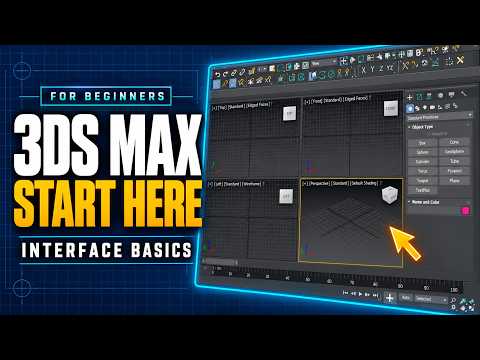
Stepping into the world of 3D computer graphics can feel overwhelming, but mastering 3ds Max modeling is one of the most rewarding skills you can acquire. Whether your goal is to produce stunning architectural visualizations, high-quality game assets, or detailed product designs, Autodesk 3ds Max remains an industry-standard power tool.
However, before you create your first complex mesh or render, you need to feel comfortable navigating the workspace. In this beginner-friendly guide, we break down the core user interface and viewport mechanics so you can kickstart your 3D journey with total confidence.
Understanding the Main Interface Layout
When you launch Autodesk 3ds Max for the first time, the massive array of menus, toolbars, and panels might look intimidating. To make sense of the layout, focus on these essential sections:
- Main Menu Bar & Toolbar: Positioned at the top of the screen, these sections host fundamental tools like object selection, transforms (Move, Rotate, Scale), and render settings.
- Command Panel: Located on the right side of the screen, this serves as your primary control center for creating, modifying, and animating 3D objects.
- Viewports: Taking up the central area of your screen, these interactive displays allow you to view and edit your 3D scene from multiple angles.
Building familiarity with these UI elements speeds up your overall workflow during everyday 3ds Max modeling tasks.
Demystifying Viewports
By default, 3ds Max splits your working canvas into four distinct viewports: Top, Front, Left, and Perspective.
- Orthographic Views (Top, Front, Left): These 2D projection views are vital for precise alignment, technical accuracy, and ensuring your geometry stays aligned along the correct axes.
- Perspective View: This dynamic 3D view gives you a realistic, spatial view of your scene, allowing you to evaluate visual depth, lighting, and scale.
To navigate viewports effortlessly, use quick shortcuts like holding Alt + Middle Mouse Button to orbit around your objects, or press Min/Max Viewport Toggle (Alt + W) to maximize any single viewport you are working in.
Ready to Build Your First 3D Scene?
Getting comfortable with screen navigation and workspace management lays a rock-solid foundation for all future 3ds Max modeling projects. Once you master zooming, panning, and switching between viewport angles effortlessly, you will be ready to move on to basic shape creation and polygon editing.
Spend a few minutes testing out these interface controls today, and take your first major step into the world of 3D design!


