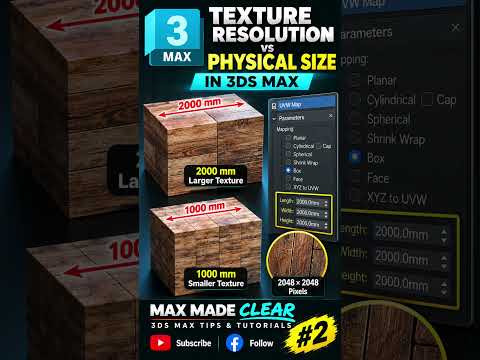
When working within the powerful environment of 3ds Max Arnold, one of the most common points of confusion for beginners is the relationship between texture resolution and the actual physical size of the texture on a 3D model. You might have a high-quality 2048 × 2048 (2K) texture, but that doesn't mean it will always appear the same size on every object.
In this guide, we’ll break down why mapping matters more than resolution when it comes to the scale of your materials.
Resolution vs. Real-World Scale
Texture resolution, such as 1024px or 2048px, defines the amount of detail and clarity a map contains. However, resolution does not dictate how large that texture looks on your geometry. A 2K wood grain texture could look like a massive slab on one box and tiny, repeating splinters on another.
The "size" of the texture is controlled by UV coordinates. This is a critical concept to master when setting up your scenes for 3ds Max Arnold, as the renderer relies on accurate mapping to calculate how light interacts with surface details like bumps and displacements.
The Role of the UVW Map Modifier
To control how a texture sits on your object, you use the UVW Map modifier. This tool allows you to define the projection type—be it planar, box, or cylindrical—and, more importantly, the Gizmo size.
If you increase the size of the UVW Map gizmo, the texture stretches. If you decrease it, the texture tiles or shrinks. Even if your texture is 8K, if the UVW map is stretched too far across a massive environment, the result will look blurry and pixelated. Conversely, a low-resolution texture can look sharp if it is mapped to a very small area.
Optimizing Your 3ds Max Arnold Workflow
When rendering with 3ds Max Arnold, achieving "Texel Density" consistency is key. Texel density refers to the number of texture pixels per unit of measurement on your 3D surface. To ensure your renders look professional:
- Use Real-World Map Size: Check this option in both your Material Editor and your UVW Map modifier to maintain consistent scaling across different objects.
- Match Resolution to Distance: Don't waste memory on 4K textures for objects that are far from the camera.
- Verify UVs: Always check your UV distortion before hitting the render button to avoid stretched textures.
By understanding that resolution provides detail while UVW mapping provides scale, you can create more realistic, optimized, and visually stunning 3D renders.


