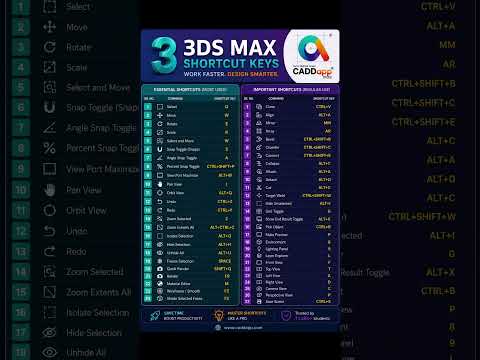
In the fast-paced world of 3D design and architectural visualization, time is your most valuable asset. Whether you are a seasoned professional or a student just starting out, the speed at which you navigate your workspace determines how quickly you can bring your creative visions to life. Mastering 3ds Max shortcuts is not just about saving a few seconds; it is about staying in a "flow state" where your tools become an extension of your thoughts.
Why Every Designer Needs a Shortcut Strategy
Navigating through dense menus to find the Move, Rotate, or Scale tools can break your concentration and slow down your creative process. By internalizing the most common keyboard commands, you eliminate the friction between your ideas and the software. Transitioning from a mouse-heavy workflow to a keyboard-centric one can effectively double your output, allowing you to focus on the fine details of your geometry and lighting rather than searching for buttons.
Essential Shortcuts for Faster Modeling
To get started with optimizing your efficiency, focus on the core commands used in everyday modeling tasks. Here are a few must-know shortcuts that every user should have at their fingertips:
- W, E, R: The holy trinity of transformation tools (Move, Rotate, and Scale).
- G: Quickly toggle the visibility of the viewport grid to declutter your workspace.
- Alt + W: Instantly toggle between a single viewport and the 4-view layout.
- F3 & F4: Switch between Wireframe and Shaded modes, or toggle Edged Faces to see your topology clearly.
By consistently practicing these 3ds Max shortcuts, you will find that your hand-eye coordination improves, and the software begins to feel much more intuitive.
Customizing for Peak Performance
One of the greatest strengths of Autodesk 3ds Max is its customizability. While the default keys are industry standards, you can head into the "Hotkey Editor" to tailor the experience to your specific needs. If you find yourself using a specific modifier or a particular rendering setting frequently, assigning it a custom key can save you hours of work over the course of a project.
Conclusion
Speeding up your 3ds Max workflow is a journey of small improvements that lead to massive results. Start by integrating a few new 3ds Max shortcuts into your routine every day. Before long, you’ll be navigating complex scenes and high-poly models with the speed and precision of an expert. Remember, the less time you spend clicking, the more time you have for creating.


