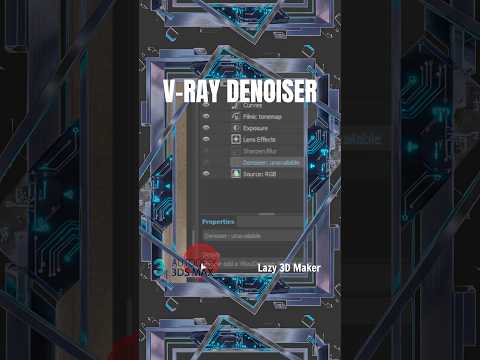
Achieving a photorealistic finish in 3D modeling often feels like a battle against time and technical hurdles. One of the most common frustrations for artists using Autodesk 3ds Max is image noise—those pesky grains that can ruin a perfect render. Fortunately, the V-Ray Denoiser is a game-changer that allows you to produce clean, professional images without waiting hours for every single pass to finish.
Why Use the V-Ray Denoiser?
The V-Ray Denoiser is an essential tool that analyzes your scene and intelligently removes noise while preserving sharp edges and textures. Instead of cranking up your render settings to an extreme level (which exponentially increases render times), you can use the Denoiser to "clean up" the image in post-processing. This allows for faster iterations and more efficient project delivery.
Step-by-Step: Adding V-Ray Denoiser in 3ds Max
Setting up the Denoiser is straightforward. Follow these steps to integrate it into your workflow: 1. Open the Render Setup window (F10). 2. Navigate to the Render Elements tab. 3. Click the Add button and select VRayDenoiser from the list. 4. Once added, you can select the Denoiser in the list to modify its settings in the properties rollout. You can choose between the V-Ray default denoiser, NVIDIA AI, or Intel Open Image Denoise depending on your hardware.
Enhancing Efficiency with a 3ds Max Script
While built-in features like the Denoiser are powerful, professional artists often seek ways to automate repetitive tasks. This is where leveraging a specialized 3ds Max script can drastically improve your efficiency. For instance, tools like the "Lazy 3D Maker Room Generator" allow you to automate the creation of complex environments, letting you focus on the technical aspects of lighting and denoising rather than manual geometry placement.
Integrating a well-crafted 3ds Max script into your daily pipeline doesn't just save time; it ensures consistency across your projects. Whether you are working with V-Ray or Corona Renderer, these scripts bridge the gap between technical complexity and creative freedom. By reducing the time spent on mundane tasks, you have more room to experiment with the V-Ray Denoiser settings to find that perfect balance between speed and quality.
Conclusion
Mastering tools like the V-Ray Denoiser is a vital skill for any modern 3D artist. When you combine these powerful rendering features with a productivity-boosting 3ds Max script, you transform your workstation into a high-speed production powerhouse. Start experimenting with these tips today and watch your rendering times drop while your image quality soars.


