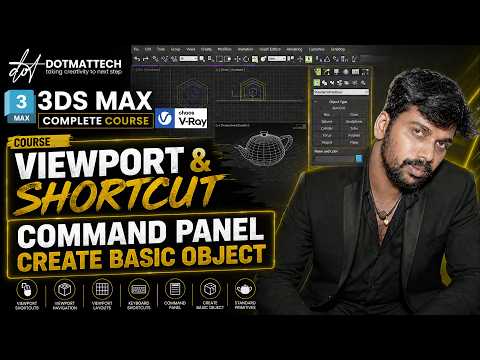
Autodesk 3ds Max is one of the most powerful software packages for 3D modeling, animation, and architectural rendering. However, for beginners, navigating its massive interface can feel overwhelming. Learning the right 3ds Max shortcuts and mastering the Command Panel is the fastest way to streamline your workflow and elevate your 3D design process from sluggish to seamless.
Essential Viewport Navigation Shortcuts
When working on complex 3D scenes, navigating the active viewport efficiently is critical. Instead of constantly searching for UI icons, using simple keyboard shortcuts saves hours of production time.
Here are the key viewport controls every beginner should memorize: * Alt + Middle Mouse Button: Rotate the viewport view freely around your scene. * Scroll Wheel / Middle Mouse Drag: Zoom in/out and pan across the workspace. * Alt + W: Toggle to maximize or restore the active viewport window. * P, T, F, L: Instantly switch between Perspective, Top, Front, and Left camera views. * Z: Zoom Extents (instantly center and focus on selected objects).
By integrating these primary 3ds Max shortcuts into your muscle memory, you can manipulate your 3D canvas with precision and confidence.
Understanding the Command Panel Workflow
While shortcuts handle interface navigation, the Command Panel is where actual creation happens. Positioned on the right side of your workspace, it houses six essential tabs that control every aspect of your scene:
- Create Tab: The primary starting point for generating geometry, 2D shapes, lights, and cameras.
- Modify Tab: The heart of 3D modeling, where you assign powerful modifiers like Edit Poly, Extrude, and TurboSmooth.
- Hierarchy Tab: Crucial for adjusting object pivot points and setting up parent-child relationships for animation.
- Motion Tab: Manages animation keyframes, trajectories, and controller settings.
- Display Tab: Helps keep your scene organized by letting you hide, freeze, or color-code viewport elements.
- Utilities Tab: Access extra tools such as measurement utilities, asset tracking, and batch processing.
Boost Your 3D Productivity
Combining a complete understanding of the Command Panel with fluent 3ds Max shortcuts will drastically reduce your project turnaround time. Whether you are building architectural visualizations or game assets, establishing these core habits early sets a strong foundation for professional-level speed and control. Start applying these navigation tips today to unlock your full creative potential in 3ds Max!


