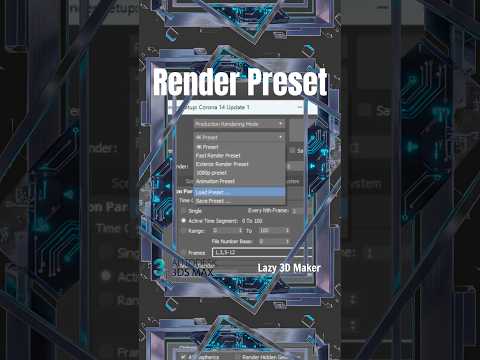
In the fast-paced world of 3D architectural visualization and product rendering, efficiency is just as important as artistic skill. Every minute spent manually adjusting settings is a minute taken away from the creative process. If you find yourself repeatedly clicking through the same tabs to set up your GI, noise threshold, and output resolution, it is time to master the power of render presets.
Why Render Presets Matter
Setting up a professional 3ds Max vray environment involves balancing dozens of parameters. From Global Illumination and Image Samplers to Environment overrides, the complexity can be overwhelming. By using presets, you ensure consistency across different scenes and significantly reduce the margin for human error. Whether you are switching between a quick "Draft" mode for client previews or a "Final Production" mode for high-resolution output, presets allow you to change your entire configuration in two clicks.
How to Create and Save Your Preset
Creating a preset is a straightforward process that will save you hours in the long run. Follow these steps to optimize your pipeline:
- Configure Your Settings: Open the Render Setup dialog (F10). Choose your renderer and adjust all the settings to your liking. For a standard 3ds Max vray setup, this might include your preferred Bucket size, Denoiser settings, and Color Mapping.
- Locate the Preset Dropdown: At the very bottom of the Render Setup window, you will find a "Preset" dropdown menu.
- Save the Preset: Click on the dropdown and select "Save Preset." A file browser will open; give your preset a descriptive name like "Vray_Final_Interior_High" and click Save.
- Select Categories: A dialog box will appear asking which categories you want to save (Common, Renderer, etc.). Usually, it is best to check all of them to ensure a complete transition.
Streamlining Your 3D Production
Once saved, these presets are stored as .rps files. This means you can even take them with you to different workstations or share them with your team to ensure everyone is working with the same quality standards.
To further enhance your speed, consider integrating tools like the "Lazy 3D Maker" script, which automates many of the repetitive modeling and setup tasks that come before the rendering stage. By combining custom presets for 3ds Max vray with smart scripts, you transform your workflow from a manual grind into a streamlined, professional production line.
Conclusion
Mastering render presets is a small step that yields massive results. By taking five minutes today to save your most-used configurations, you are investing in a smoother, faster, and more professional future for your 3D projects. Stop clicking and start creating!


