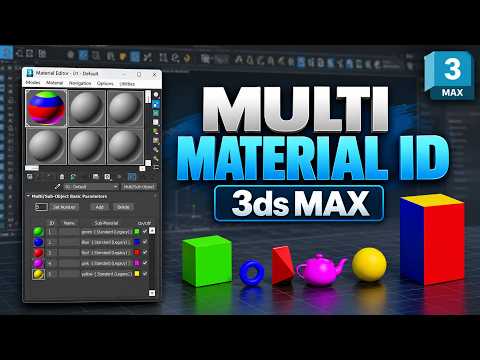
When texturing complex 3ds Max game assets, managing multiple materials efficiently is essential for keeping your project organized and performance-friendly. Instead of detaching geometry into separate objects just to apply different textures, 3ds Max offers a powerful built-in workflow: combining Material IDs with the Multi/Sub-Object Material.
In this step-by-step guide, you will learn how to master Material IDs to texture a single mesh seamlessly.
Understanding Multi/Sub-Object Materials and Material IDs
A Multi/Sub-Object material acts as a container that holds several individual sub-materials. Each sub-material corresponds to a specific numerical Material ID assigned to individual polygons on your 3D model.
By assigning distinct IDs to different face groups—such as setting metal parts to ID 1, glass to ID 2, and rubber to ID 3—you can apply multiple distinct materials to a single object without breaking up its topology.
Step 1: Assign Material IDs to Your Mesh
To prepare your mesh for multi-material application:
1. Select your model and convert it to an Editable Poly (or apply an Edit Poly modifier).
2. Enter the Polygon sub-object selection mode.
3. Select the polygon faces you want to group under a specific material type.
4. Scroll down to the Polygon: Material IDs rollout panel in the command panel.
5. Type a number in the Set ID field (e.g., 1) and hit Enter.
6. Repeat this process for the remaining polygon groups using different ID numbers (2, 3, etc.).
Step 2: Create and Apply the Multi/Sub-Object Material
- Press
Mto open the Material Editor. - Create a new Multi/Sub-Object material node.
- Set the number of sub-materials to match the total number of IDs you assigned.
- Assign standard, PBR, or physical materials to each corresponding slot (ID 1, ID 2, etc.).
- Drag and assign the top-level Multi/Sub-Object material onto your object in the viewport.
Why This Workflow Matters for Game Artists
Using Material IDs drastically simplifies your asset pipeline. When optimizing 3ds Max game assets for real-time game engines like Unity or Unreal Engine, this technique keeps your scene clean, streamlines UV unwrapping, and ensures seamless material slot mapping upon import.
Start integrating Multi/Sub-Object materials into your daily texturing routine to speed up your 3D asset creation workflow today!


